1. Web Scraper Overview
Web Scraper is a browser extension for Chrome, Edge, and Firefox that automatically detects and extracts repeated data (such as product lists, article directories, news headlines, search results, etc.) from active web pages.
Simply open a page and click the extension icon to automatically analyze the page structure and generate a preview in table format. It also supports batch data collection across multiple pages (paging).
2. Differences from Other Scraping Extensions
Web Scraper stands out from similar extensions with the following key features:
Automatically detects URL query parameters (?page=2), path segments
(/page/2/), and "Next" links on the page. Crawls all pages automatically with a
single toggle switch to collect data in bulk.
The "Scan Page N" button lets you accumulate data page-by-page at your own pace, reviewing each page. Ideal for cases where automatic crawling is unreliable or when you only want to collect specific pages.
If the automatically detected range differs from your intent, you can reselect the container on the web page using point-and-click. Switch to parent elements easily using the hierarchy navigator.
Click the extension icon to automatically score repeating structures (such as ul/li, tables, and card layouts) on the page, instantly previewing the best data area.
Uses only minimal permissions at installation. Requests temporary access to the target domain via a dialog only when scraping is executed, minimizing privacy risks.
Supports CSV (UTF-8 with BOM, RFC 4180 compliant), JSON (pretty-printed with indentation), and Text (TSV format). Ready to import directly into Excel or Google Sheets.
Feature Comparison Table
| Feature | Web Scraper (This Extension) |
Standard Scrapers |
Table-Only Extractors |
|---|---|---|---|
| Auto-detects data on page load | ✔ | △ Requires manual setup | ✔ |
| Extracts lists / card layouts | ✔ | ✔ | ✖ |
| Auto-detects & crawls sequential pages | ✔ | △ Manual URL specs | ✖ |
| Manual paging (Verify step-by-step) | ✔ | ✖ | ✖ |
| Modify scope via Visual Selector | ✔ | ✔ | ✖ |
| Dynamic permission request (Minimal) | ✔ | ✖ Allowed on all sites | △ |
| Export in 3 formats (CSV/JSON/TXT) | ✔ | △ CSV only | ✔ |
3. Basic Usage (Visual Guide)
This section explains the basic scraping workflow using the extension with step-by-step screenshots.
-
1Open a web page and click the extension
Open the web page you want to collect data from (news feed, product list, search results, etc.) and click the extension icon
 in the top right corner. A
popup will open, automatically importing the current page's URL.
in the top right corner. A
popup will open, automatically importing the current page's URL. -
2Auto-Analysis — Instant Data Preview
The page structure is automatically analyzed, and detected repeating elements are displayed as a table preview. Data such as URLs, titles, and image URLs are automatically mapped to separate columns.
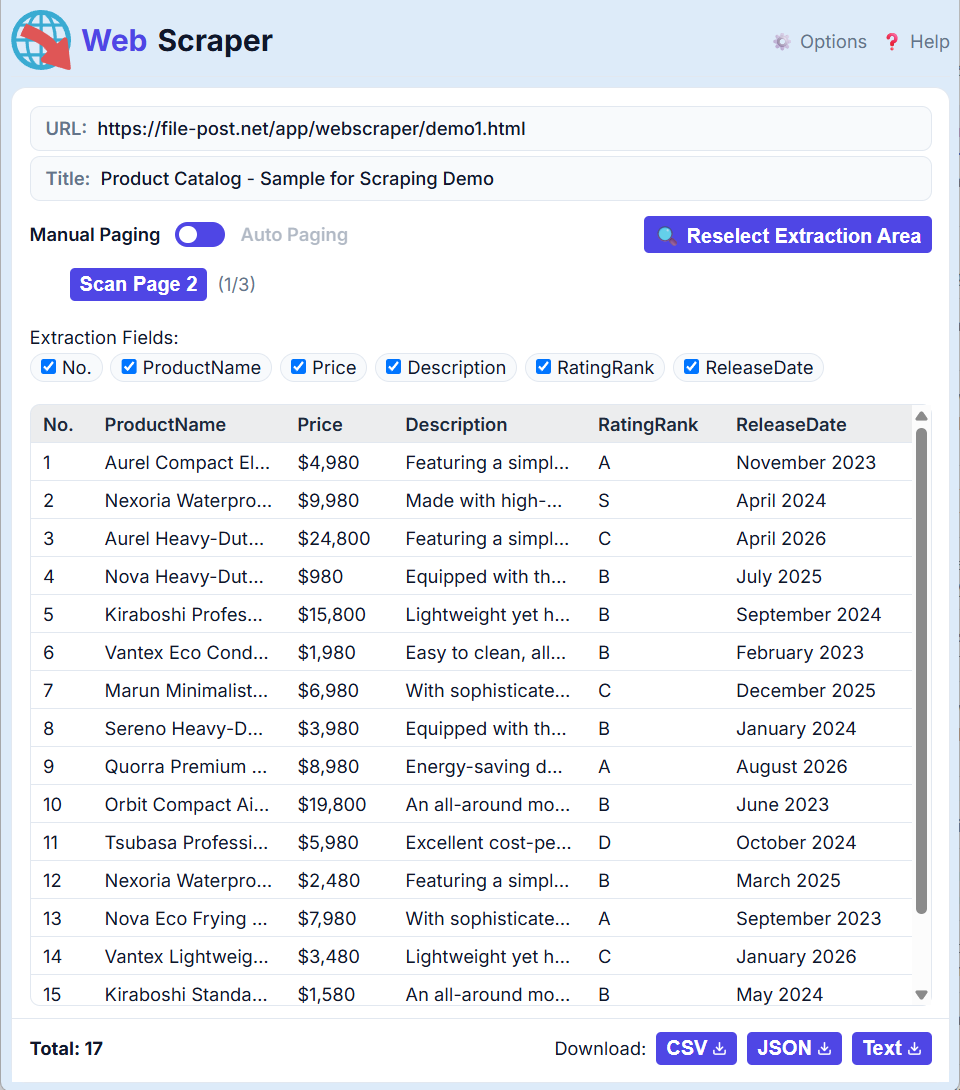 Figure 1: Main Window — Repeating data is automatically detected and previewed simply by opening the page.
- AURL & Title Display: Displays the URL and title of the page currently being analyzed.
- BPaging Mode Toggle: Switch between Manual Paging Auto Paging using the toggle switch.
- CManual Page Scan Button: Click Scan Page 2 to append data from the next page directly below the existing rows.
- DExport Field Selector: Toggle checkboxes to enable/disable specific columns for export.
- EData Preview Table: List of automatically extracted data, showing link URLs, text, and image URLs by column.
- FDownload Buttons: Save the collected data in CSV, JSON, or Text format.
-
3Adjusting the Extraction Scope (Optional)
If the automatically detected area is not what you wanted, click the 🔍 Reselect Scope button to launch the Visual Selector.
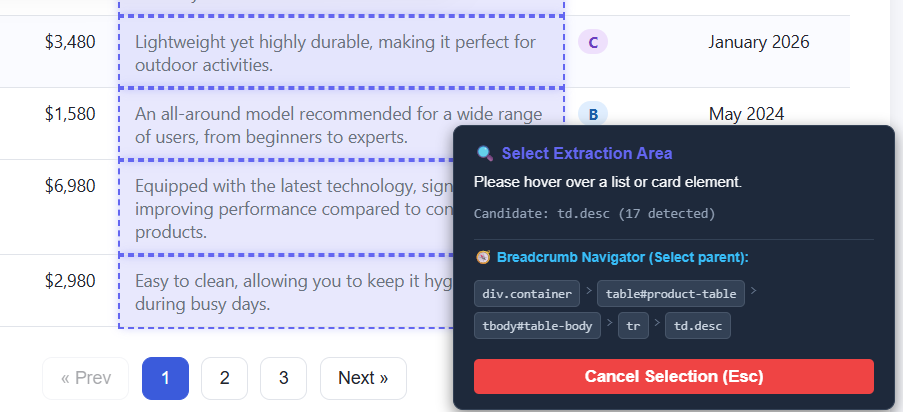 Figure 2: Visual Selector — Click directly on the target page to select the region you want to extract.
- AHover Highlight: Moving your mouse highlights potential containers (data areas) with a dashed blue border. Click the area containing your data to select it.
- BElement Hierarchy Navigator: The bottom-right panel displays the chain of parent elements up to the root. Click elements to expand (parent) or narrow down (child) the selection scope.
- CCancel Selection: Press the
Esckey or click "Cancel" to abort and revert to the auto-detected state.
Tip: If you want to select the entire table rather than just a specific row, try clicking thetableortbodyelements in the hierarchy navigator. -
4Collecting Data Across Multiple Pages (Paging)
If the target site is split into multiple pages, you can collect the data in bulk using one of two methods.
🅰 Manual Paging (Default)
With the toggle set to "Manual Paging", clicking the Scan Page N button loads the next page and appends its data to the bottom of the table. Ideal for verifying pages one by one as you collect.
🅱 Automatic Paging
Switch the toggle to "Automatic Paging" and click Start Auto Scan to automatically navigate through subsequent pages and harvest data in bulk.
You can adjust the page transition delay, timeouts, and maximum page limits on the fly.
How Auto-Paging Works: It automatically detects page parameters in the URL (like?page=2or/page/2/) or tracks "Next", "Next Page", ">" buttons on the DOM. The process stops when 0 items are extracted, no next link is found, a loop back to the same URL is detected, or the page limit is reached. -
5Downloading Data
Collected data can be downloaded immediately using the CSV, JSON, or Text buttons below the preview table.
Format Features CSV UTF-8 with BOM / RFC 4180 compliant. Can be opened directly in Microsoft Excel or Google Sheets. JSON Pretty-printed with indentation. Suitable for post-processing or API integrations. Text Tab-separated (TSV) format. Lightweight, highly versatile, and easy to view or process in text editors. Once exporting is complete, click the button to clear the data and reset the extension to its initial state.
4. How Auto-Paging Works Under the Hood
Auto-paging automatically determines and applies one of the following three patterns in order of priority:
| Pattern | Target URL / DOM Example | Action / Logic |
|---|---|---|
| 1. Query Parameter Pattern | https://example.com/items?page=1 |
Automatically increments (+1) numerical query parameters in the URL such as
page=N, p=N, or offset=N to load the next page.
|
| 2. Path Segment Pattern | https://example.com/items/page/1/ |
Automatically increments (+1) numerical values located inside path segments of the URL
(e.g., /page/N/ or /p/N/). |
| 3. "Next" Link Tracking Pattern | <a href="items_2.html">Next</a> |
Searches the DOM for anchor links (a tags) containing keywords like "Next", "next", ">", or "≫", and navigates to the URL specified in their href attribute. |
5. Options (Advanced Settings)
Click the link in the top-right corner to adjust performance parameters. These settings are crucial for reducing server load and increasing scraping success rates.
- Request Interval (Min/Max)
- Introduces a random delay within this range before accessing each page (default: 1000ms to 2000ms). This is a critical setting to prevent overloading the target server due to rapid requests.
- Max Pages to Scan
- The maximum page count limits for a single auto-paging session (default: 50 pages). Functions as a safety net for sites with infinite scroll or to prevent infinite loops.
- Max Retries
- The number of redirection or reload attempts in case of network drops or transient errors (default: 2 times).
6. Security & Troubleshooting
Access Permissions (Dynamic Permissions)
This extension follows the "Principle of Least Privilege". It does not read any web page content upon installation. Instead, it prompts for temporary host access to the target domain only when the user executes a scraping job.
Storage Limit Warning (5MB Cap)
Data collected is saved in the local storage (chrome.storage.local) so it persists even if the browser is closed. The storage cap is approximately 5MB. If accumulated data exceeds 4MB, a yellow warning banner stating "⚠️ Storage capacity limit is running low" will display. Please export your data and clear your history promptly.
What to Do if Data Cannot Be Extracted
- Reload the Page: Dynamic loading on websites can occasionally disrupt the parsing logic. Try reloading the target page (F5) and relaunching the extension.
- Use the Visual Selector: If the auto-extraction is misaligned, click the 🔍 Reselect Scope button to manually select the target container. Utilizing the hierarchy navigator to select a parent element often yields better results.
- SPA / Dynamic JavaScript Sites: In some Single Page Applications, data is rendered fully only after the page scripts finish execution. If the DOM doesn't exist at the time of the initial parse, the extension might fail to retrieve data.